Stratson support
Tender documents
Find tender documents
Find the tender documents attached to a project. Start from the home screen with an existing project.
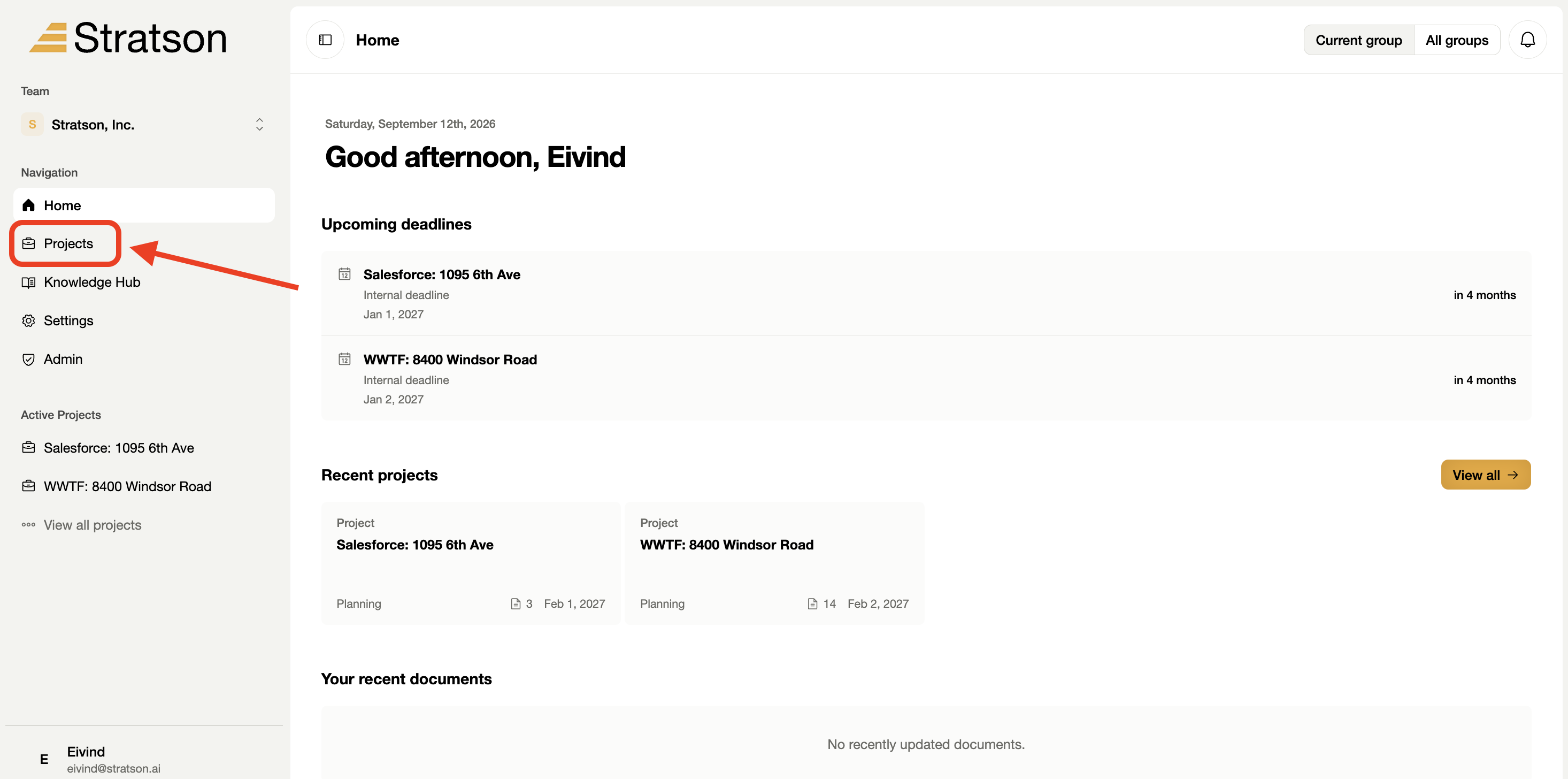
1. Open Projects
Select Projects in the left sidebar to see your project list. The red arrow marks the navigation item.

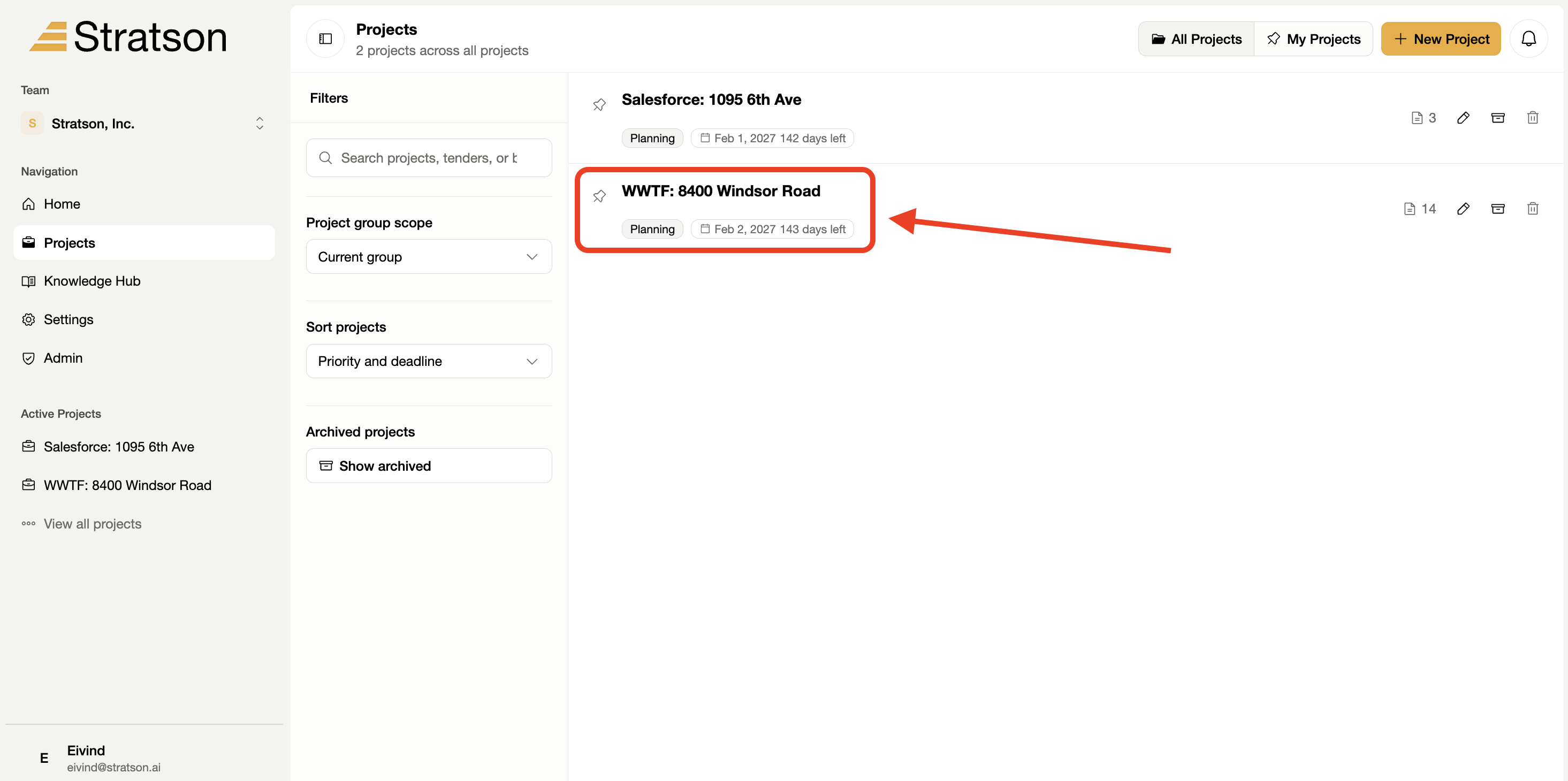
2. Choose your project
Select the project you want to work in. The screenshot highlights "WWTF: 8400 Windsor Road" as an example. You can use the search field to find your own project.

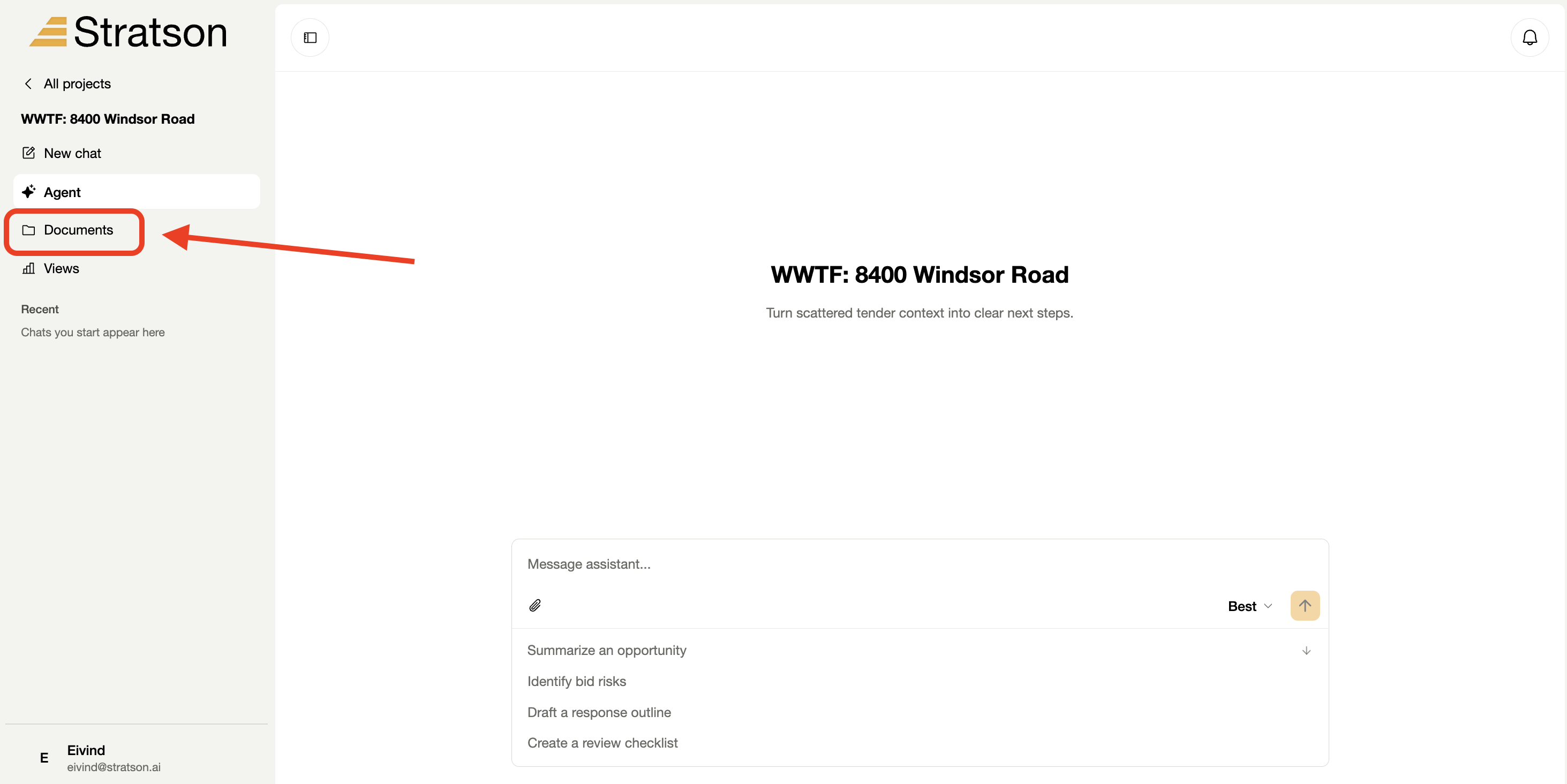
3. Open Documents
Inside the project, select Documents in the left sidebar. This opens the file area for that project.

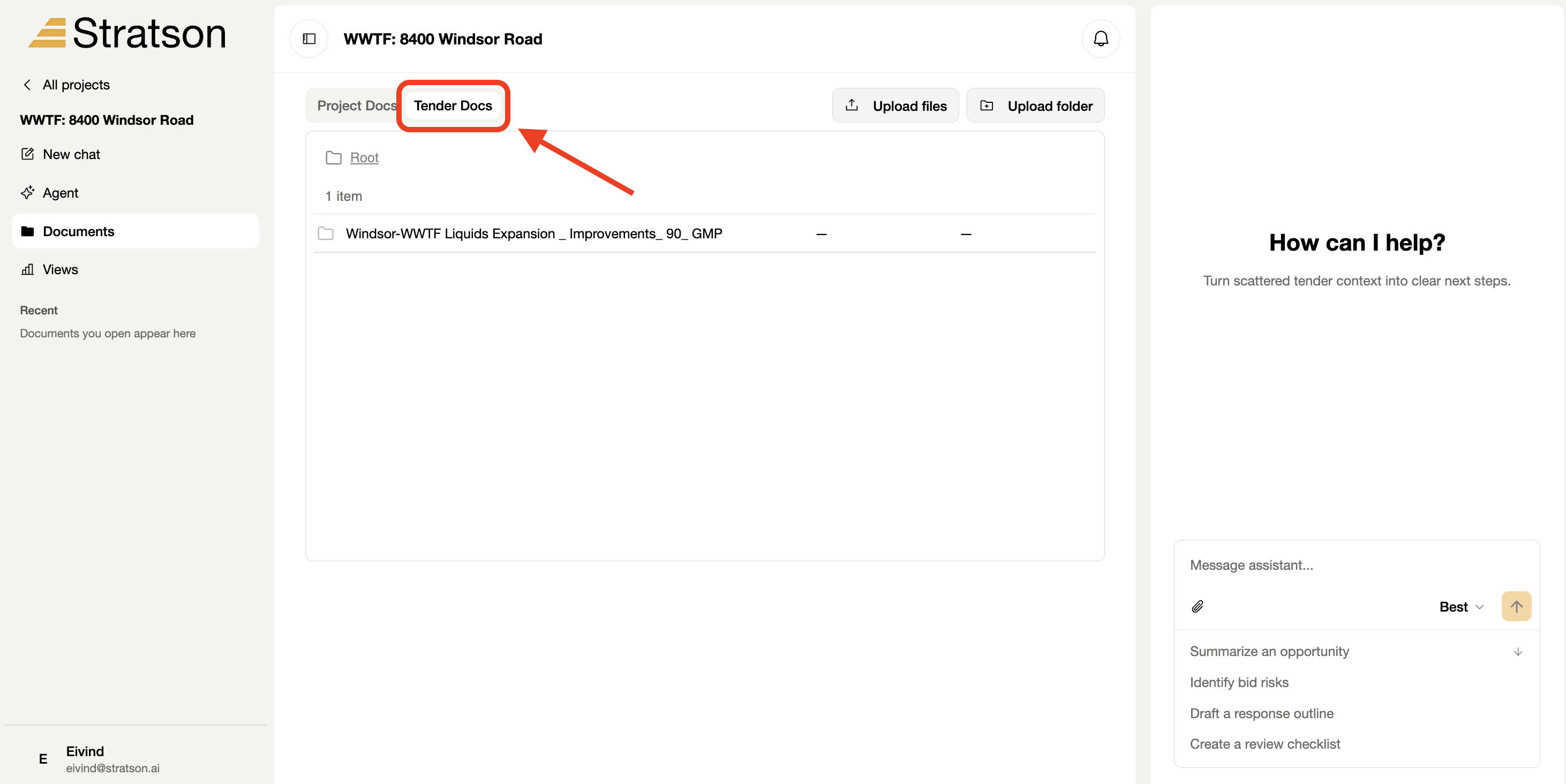
4. Select Tender Docs
Choose the Tender Docs tab to find the source files attached to the tender. Select a folder or file to inspect it.